If an AI agent operates my computer, can I keep using it too?
That question became the deciding requirement in this Linux computer-use experiment. Recognizing windows, clicking buttons, and entering Chinese text are useful capabilities. But when every action moves my pointer or switches away from my current window, I have to stop working and watch the agent finish.
My initial request to Codex was simply to evaluate a GitHub project. We went on to compare alternatives, run desktop tests, and move GUI work into a separate virtual machine. The core requirement has now been demonstrated. I consider the result a usable personal workflow, with substantial work remaining before it could be described as a general, maintenance-free Linux automation product.
Getting real desktop actions to work
The starting point was agent-sh/computer-use-linux. It exposes Linux desktop capabilities through an MCP server and a CLI. An AI client can inspect windows and accessibility information, then send input.
Accessibility information matters here. When an application implements AT-SPI correctly, the tool can identify buttons, text fields, and control states by name or element index. When the application exposes only pixels, screenshots and coordinates remain necessary. Support varies between applications, so installing the server is only the beginning of an evaluation.
My host runs Ubuntu 22.04.5 with GNOME 42.9 on X11. Those versions materially affected the work. The project describes itself as Wayland-first, with X11 behavior requiring assessment on the actual desktop.
I asked Codex to look for a more popular or better-suited alternative first. Cua Driver became a candidate. It supports the existing host desktop, provides MCP integration, and can perform some actions in the background. The Cua repository had considerably more attention at the time, although that count covers the entire project and says little about the reliability of its Linux driver.
We tested Cua Driver 0.24.0 first.
Background button clicks, checkbox actions, and some value updates worked. Text input produced two concrete failures. One attempt to insert the six-character string 中文输入测试 left only 中文. Another request named the intended test window, yet inserted text into a different window belonging to the same process.
The response included wording such as Typed 6 character(s), while also reporting effect: unverifiable. The application’s own state file showed what actually happened. We did not retain that installation because it failed the critical input checks.
This finding applies to that version, this machine, and these tests. It does not establish that Cua fails on every Linux desktop, or replace testing a later release.
Working input still left a desktop conflict
We returned to computer-use-linux 0.5.0.
Its prebuilt binary required GLIBC_2.39; my host had 2.35. We used an existing Rust toolchain in the task workspace to build a compatible executable, without upgrading the host’s system libraries.
Further testing found several compatibility issues. The older GTK/ATK stack could crash the target application when its actions were enumerated in one batch. GNOME has an upstream fix for that issue. Our local version reads the equivalent action information individually. X11 scrolling and dragging reuse the installed xdotool, and non-ASCII typing gets a 12 ms delay to allow temporary keyboard mappings to settle. Input is rejected when the requested process ID does not match the window ID.
Screenshots exposed another problem. Older X11 utilities could count window decoration offsets twice, causing a window crop to include neighboring content. We switched to xwininfo for the actual client-area coordinates. Testing inside the VM later revealed that relative clicks still followed a separate shortcut using the old offsets. Routing that path through the same coordinate conversion made clicks agree with the screenshots.
These are local compatibility changes. They make this environment usable, and they also create a responsibility to rebuild and validate future upgrades.
The host phase eventually passed 20 desktop checks, including repeated Chinese input, shortcuts, control manipulation, and a real file-save operation. The controller also passed 272 unit checks. Those numbers describe different kinds of evidence. One tests application behavior; the other tests program logic. Adding them together would not produce a meaningful reliability score.
At that point I raised the question from the opening. The agent was still operating my main desktop. Whenever it took focus, I had to yield the interface I was using.
A second monitor or another GNOME workspace would still share input and focus within the same desktop session. I needed a separate graphical environment.
Which projects the final setup uses
During the investigation, we also found the author’s agent-workspace-linux. Its purpose fits this problem closely. It provides a hidden Xvfb desktop with its own applications and browser, plus a viewer and control entry points.
The final installation does not use or install agent-workspace-linux. It was a research candidate. We did not run a head-to-head trial against the VM setup, so this experience cannot establish which would work better.
We chose a standard QEMU/KVM virtual machine running Ubuntu 24.04, XFCE, and the tested computer-use-linux executable. The small amount of new local code starts the VM, waits for its desktop, and connects MCP through SSH. TigerVNC supplies the viewer.
| Layer | Component used | Responsibility |
|---|---|---|
| Desktop isolation | QEMU/KVM | Run a separate Linux system |
| Guest desktop | Ubuntu 24.04, XFCE, X11 | Run applications and manage their windows and focus |
| GUI control | Our locally patched computer-use-linux | Inspect controls, capture screenshots, and send input |
| Integration and viewing | Our agent-desktop launcher, SSH, TigerVNC | Manage the lifecycle, connect MCP to the guest, and provide a viewer |
Desktop control and virtualization both reuse existing projects. agent-desktop is the local entry-point name we chose for this installation. It is distinct from the upstream agent-workspace-linux project.
The host now has two MCP entries. agent-desktop operates the VM; the original computer-use-linux entry operates the physical host desktop. The accompanying skill directs GUI tasks that can use a separate application instance to the VM. Tasks explicitly requiring an existing host window use the host entry. A failed guest operation should not silently fall back to the host.
The instruction helps select the right tool. The VM provides the actual separation. A prompt asking the agent to leave my pointer alone cannot change where an input backend sends its events.
Verifying that the host stays undisturbed
We allocated 4 GiB of memory, two virtual CPUs, and a sparse disk with a 40 GiB maximum. After installation, the writable disk occupied about 1.2 GiB and the base image about 253 MiB. KVM support was checked by creating a VM and inspecting its running state.
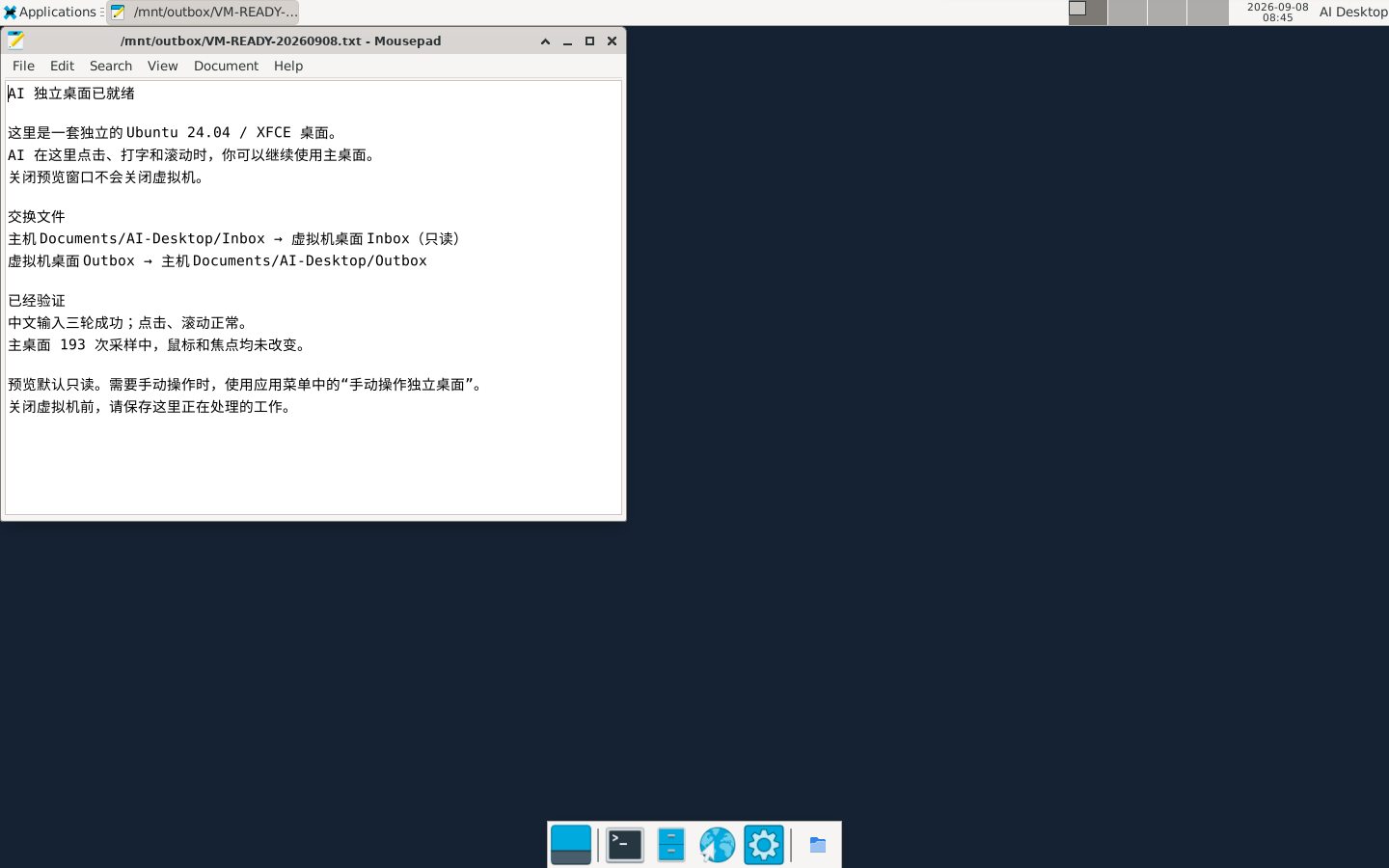
This is the actual viewer. Closing it leaves the guest desktop running.
For verification, Codex opened a dedicated GTK test application inside the VM. It completed three rounds of Chinese input, clicked a counter button, and scrolled a list. The application recorded its received text, click count, and scroll position. A separate host observer only read the active window ID and pointer coordinates; it did not send input to the host.
The final record contains 193 host samples with unchanged focus and pointer X/Y coordinates. The guest pointer moved, all three text entries matched completely, and a second test window’s input remained empty.
The host pointer and focus were deliberately left alone during observation so we could detect changes made by the agent. That constraint belongs to the test; normal use does not require it. The 193 samples are observations within one verification run, not 193 independent tests. They cannot establish reliability across arbitrary applications or extended operating periods.
We checked the lifecycle separately. Closing the TigerVNC viewer left the VM process running and SSH reachable. After a normal shutdown, an MCP connection successfully cold-started the VM. The desktop and accessibility services recovered, and previously written files remained available.
The viewer defaults to read-only mode, with clipboard synchronization disabled in both directions. I can inspect progress or close the window and continue using my own desktop. Manual guest interaction uses a separate mode, with AI GUI work on that same guest paused first.
Starting an MCP connection automatically starts the VM if needed, so loading this tool in a new task may boot it. Closing the viewer does not release the VM’s resources; stopping the VM is a separate action.
Moving files in and results out
Only two directories are shared.
| Host location | Guest location | Access |
|---|---|---|
AI-Desktop/Inbox under Documents |
/mnt/inbox |
Read-only |
AI-Desktop/Outbox under Documents |
/mnt/outbox |
Writable |
Inputs that need editing are copied to the guest’s own working directory, then exported to Outbox. The test confirmed that the guest could read Inbox but could not modify its input file. Files written to Outbox were readable from the host.
This gives the workflow an explicit handoff. Existing windows and browser sessions stay on my host. The guest uses separate application instances and accounts, and it does not mount my entire home directory.
The local installation exposes a few everyday commands.
agent-desktop status   # Inspect state without starting the VM
agent-desktop view     # Open a read-only viewer; start the VM if needed
agent-desktop control  # Interact with the guest manually
agent-desktop stop     # Shut down normally after saving guest work
These commands belong to the launcher written for this setup. Installing QEMU or computer-use-linux alone will not provide them. This post records the choices and verification; it is not yet a portable installation package.
How much of the problem is solved
I can now assign the verified GUI operations to an independent desktop while retaining use of my host desktop. That is enough to begin using the workflow for the parallel-work requirement that motivated it.
I have not tested every application I use. Specific controls in WPS, Obsidian, and other software still need task-level checks. Guest applications require separate installation and login. A task that must continue in an existing host window still needs an explicit handoff.
The guest also has a single graphical focus. Two agents operating the same window can interfere with each other, so GUI tasks currently need to be scheduled by the user or agent workflow. A local VM cannot continue executing while its host is asleep or powered off.
Maintenance remains part of the cost. The launcher contains machine-specific paths, the user-local QEMU runtime needs its own update management, and the controller carries compatibility patches. We do not yet have extended, multi-application reliability data or a general recovery product.
The useful next step is to run a few real tasks and record the application, the failure point, and the recovery. Web tasks already covered by browser tools should keep using them. File and code work should still prefer commands or APIs. The independent desktop is there for work that actually needs a GUI.